




In most IT systems today, everything that happens gets recorded. These records are called logs. At first glance they may look like simple technical data, but in reality they’re one of the most important parts of managing systems, security, and performance.
In Synology environments, log management is not just about storing events. It’s about making sense of what’s happening inside the system so teams can react faster, fix problems earlier, and keep everything running smoothly.
What Are Logs and Why Do They Matter?
Logs are time-based records automatically created by systems, applications, and users. They can include things like login attempts, file access, system errors, and network activity.
Without logs, managing IT systems becomes difficult because:
• You can’t clearly see what caused a problem
• Troubleshooting takes longer
• Security issues are harder to detect
When logs are managed properly, they help you:
• See what’s happening in real time
• Respond to issues faster
• Understand system behavior more clearly
Log Management in Synology
Synology DSM provides built-in tools to manage logs in a centralized way.
Main types of logs:
• System Logs: Hardware and OS-level events
• Connection Logs: Login activity and access attempts
• File Access Logs: File usage and changes
• Service Logs: Activity from installed applications
Having everything in one place makes monitoring much easier.
How Log Management Works
Log management usually goes through a few simple steps:
1. Collection
Logs are gathered from different sources like:
• NAS system services
• Network devices (via Syslog)
• External applications
2. Sorting and Classification
Once collected, logs are grouped based on importance:
• Information
• Warnings
• Errors
• Critical issues
This helps teams focus on what really matters.
3. Storage
Logs are stored securely, with options to decide how long they should be kept. This helps with:
• Compliance
• Audits
• Historical checks
4. Analysis and Alerts
The system can filter logs and trigger alerts when something unusual happens, such as:
• Repeated failed logins
• System errors
• Hardware problems
Why Log Management Is Useful?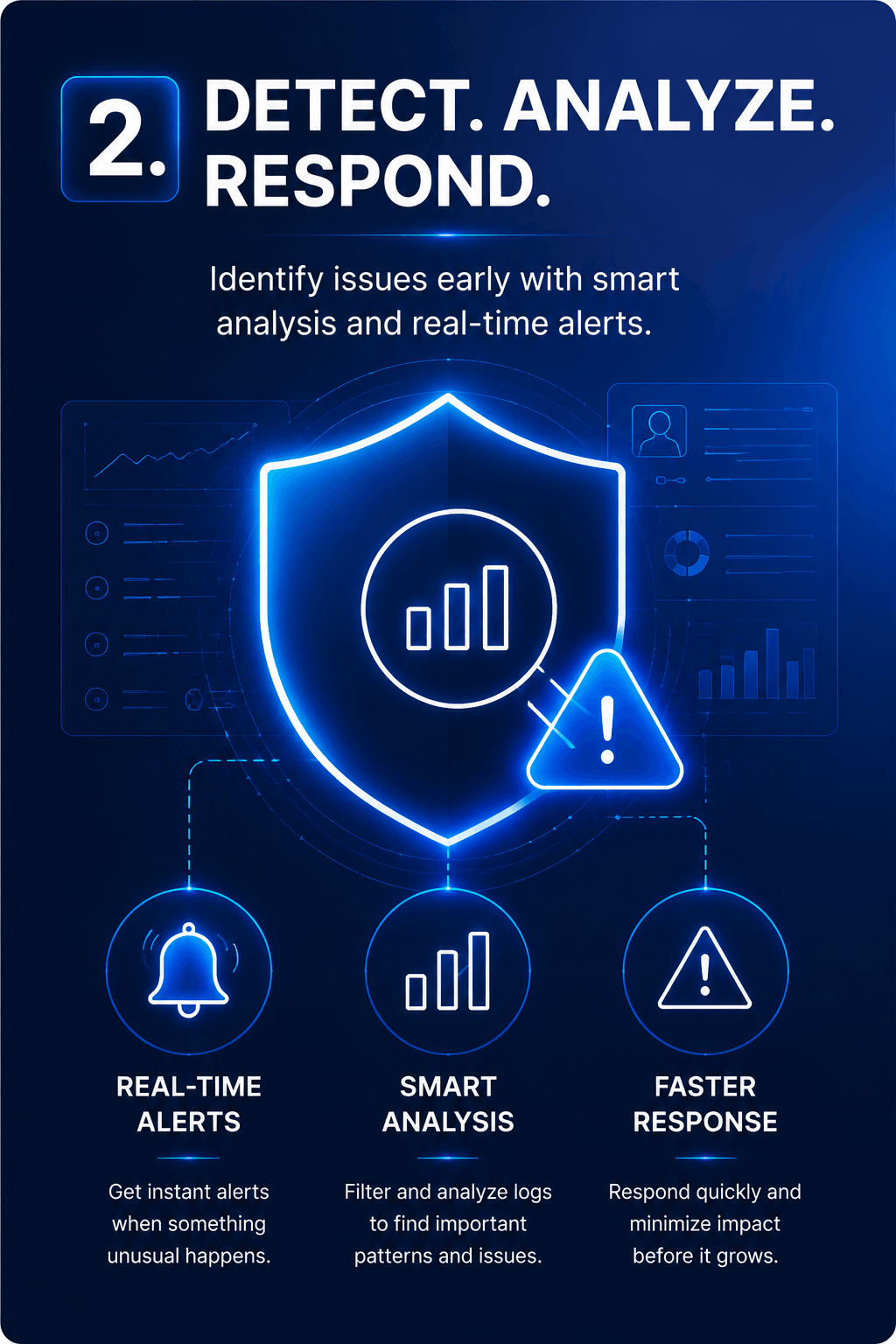
Easier Troubleshooting
Logs give a clear timeline of events, which helps to:
• Find the root cause of issues
• Fix problems faster
• Reduce downtime
Better Security
Logs help detect:
• Unauthorized access attempts
• Suspicious activity
• Early signs of attacks
Performance Insights
They also help you:
• Spot performance bottlenecks
• Monitor system health
• Improve resource usage
Centralized Logging in Synology
One strong feature in Synology is centralized logging.
The NAS can work as a Syslog server, which means it can:
• Collect logs from multiple devices
• Show everything in one dashboard
• Make network monitoring simpler
Best Practices
Keep goals clear
Don’t collect logs “just because.” Focus on:
• Security
• Performance
• Compliance
Don’t overload the system
Not all logs are important. Focus on critical events instead of everything.
Set useful alerts
For example:
• Multiple failed login attempts
• System errors
• Hardware warnings
Review regularly
Logs should be checked from time to time to make sure nothing important is missed.
Challenges
Growing data size
Logs can build up quickly. To manage that:
• Use automatic cleanup
• Archive older data
Too much noise:
Sometimes logs include too much unnecessary data, which makes it harder to find real issues.
The Future of Log Management
AI-based analysis
AI is starting to help by:
• Detecting unusual behavior
• Predicting failures
• Reducing manual monitoring
Cloud integration
Cloud logging makes it easier to:
• Store large amounts of data
• Access logs remotely
• Run long-term analysis
Conclusion
Logs are not just background system records anymore—they’re a key part of managing modern IT environments.
With Synology, logs become a practical tool that helps improve:
• Visibility
• Security
• Performance
In today’s infrastructure, proper log management is not optional it’s something every system needs.
.png)
Logs Management: Turning Data into Operational Intelligence
- Mahmoud Hassan
- Category: Synology
- Hits: 36


